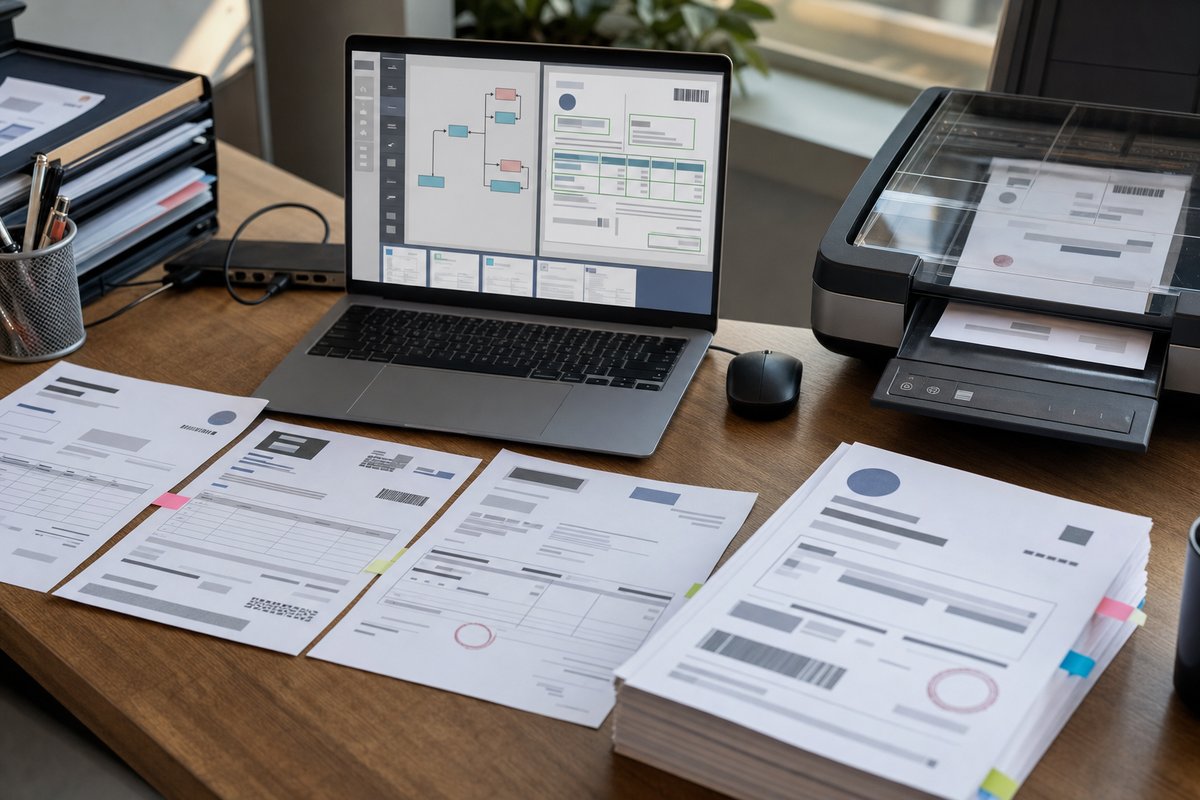
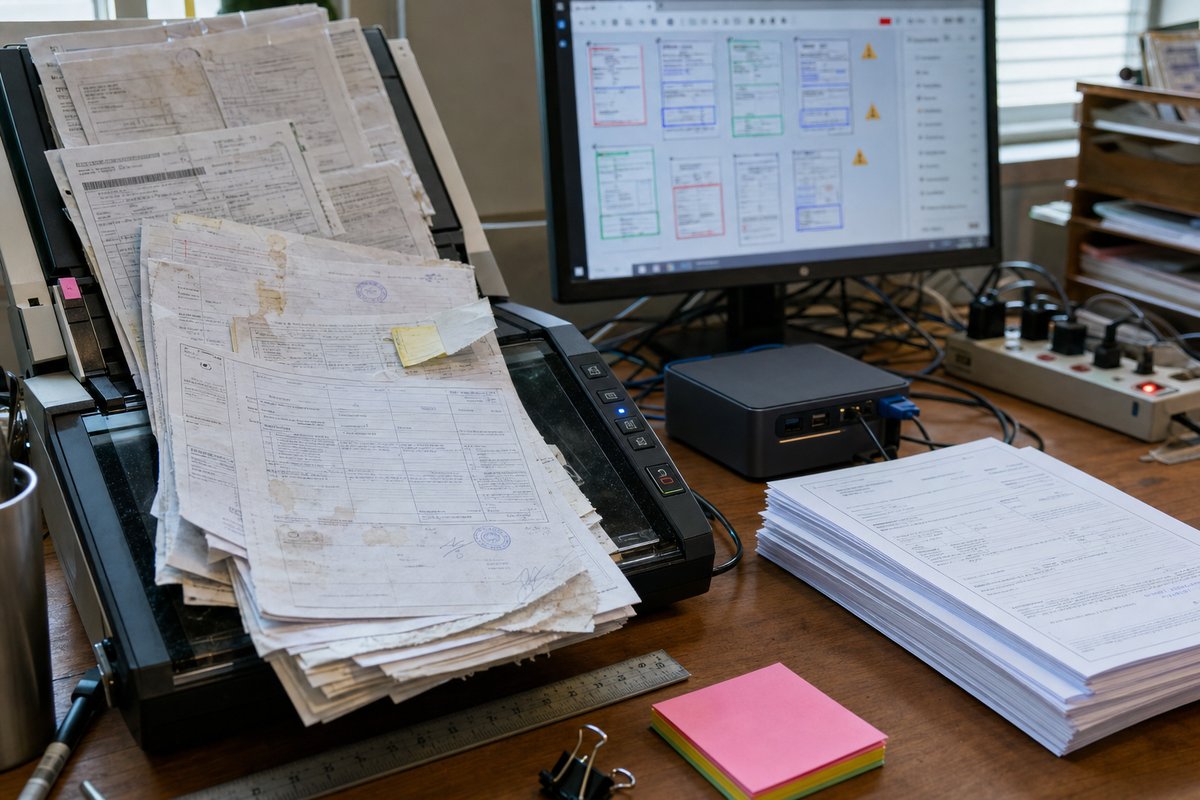
Scanned paper looks simple. To software, it often looks like a mess.
If your team has ever scanned a stack of invoices, onboarding packets, claim forms, or delivery receipts and thought, “Great, now the system can read them,” you’ve probably already run into the catch: scanning is just step one. A PDF made from paper can look perfectly fine on your screen, while the extraction tool underneath is still having a rough time with it.
That’s the core issue behind document extraction failures on scanned paper. And if you want a plain-English refresher on what document extraction means, it helps to think of it as more than turning an image into text. The real job is pulling the right data from the right place—reliably enough that your team isn’t stuck fixing it by hand all day.
When it breaks, it usually isn’t because of one dramatic problem. It’s a pileup of smaller ones: poor scan quality, crooked pages, mixed layouts, handwritten notes, stamps, shadows, low contrast, and forms that were never built with automation in mind.
That’s why scanned paper is still one of the tougher inputs in business automation.
Why scanned documents cause so many extraction problems
Digital-native files are usually easier. A Word document, an exported ERP invoice, or a properly generated PDF often contains real text and predictable structure. Scanned paper doesn’t. It’s basically a picture of a document.
That gap matters more than people expect.
When software gets a scanned page, it first has to figure out what it’s even looking at. Where are the words? Which marks matter? Is that a table border, a signature line, a coffee stain, or some weird fax artifact from 2009? Before it can extract a vendor name or invoice total, it has to make sense of the page itself.
This is one reason why OCR alone fails in real operations environments. OCR can convert visible characters into machine-readable text. But scanned paper usually needs more than text recognition. It needs interpretation.
And that’s where a lot of older document workflows start to wobble.
The most common reasons document extraction fails on scanned paper
1. The scan quality is worse than people think
A document doesn’t have to look unreadable to a person to be tough for software. Humans fill in gaps without even noticing they’re doing it. If a number is a little blurry, you can often guess it from context. Extraction systems are nowhere near that forgiving.
Common scan issues include:
- Low resolution
- Skewed or rotated pages
- Gray backgrounds from copier glass
- Shadows near page edges
- Compression artifacts from old multifunction printers
- Faded toner or light carbon copies
- Pages scanned upside down or sideways
Take a typical accounts payable process. A supplier emails a scan of a paper invoice that was printed, stamped, folded, and scanned again from a Ricoh or Canon office copier. To the AP clerk, it’s still readable. But the invoice number may sit over a stamp, the total may blur into the table border, and the supplier address may be tilted just enough to cause trouble. That’s all it takes for extraction to go sideways.
2. OCR reads characters, not business meaning
This is the big one. OCR might correctly read “04/11/24,” “11452,” and “1,872.00” from a page. But which one is the invoice date? Which one is the PO number? Which one is the amount due versus the subtotal?
People mix up text capture and data extraction all the time. They’re not the same thing.
If you’re comparing AI vs traditional OCR, this is the difference your operations team feels in real life. Traditional OCR says, “Here’s the text I found.” AI-based document intelligence tries to say, “Here’s the field you actually care about.”
On scanned paper, that distinction gets critical fast because the layout clues are weaker, noisier, and less consistent.
3. Paper forms drift over time
Lots of teams assume their forms are standardized. In practice, usually not really. A vendor tweaks an invoice template. A branch office prints an older version. A warehouse writes a note in the margin. Somebody grabs a highlighter. Somebody else faxes a copy of a copy.
Suddenly your “standard” document has five versions floating around.
And if your extraction setup depends on exact coordinates—for example, “invoice total always appears in the bottom-right box”—even a small layout shift can break it. That’s especially common in older OCR template systems.
We see this a lot with healthcare intake packets, insurance claims, field service work orders, and government forms. The process owner says, “It’s the same form.” The documents say otherwise.
4. Tables are harder than they look
Line items are where a lot of automation projects start losing steam. Pulling header fields from a scanned invoice is one thing. Pulling a full item table with quantities, descriptions, unit prices, tax, and totals is a different animal.
Tables create problems because rows can wrap, columns can drift, borders can disappear in low-quality scans, and handwritten corrections can land right on top of printed values. A human can usually sort it out. Software may split one row into two or merge two rows into one.
When that happens, downstream systems feel it almost immediately. Your ERP import fails. Reconciliation breaks. Somebody on the team ends up reviewing exceptions one by one, which kind of defeats the whole point of automation.
5. Handwriting changes the difficulty level
If your scanned paper includes handwritten notes, initials, checkboxes, or filled-in forms, extraction gets a lot tougher. Not impossible. Just tougher.
Handwriting varies by person, pen type, scan quality, and how rushed somebody was when they filled out the form. A neat block-letter field on a clean intake form is one thing. A field technician’s damp carbon-copy service ticket written in a truck cab is something else entirely.
If that’s your reality, this guide on handwritten forms with AI is worth reading. Because the old assumption that handwriting can’t be automated at all isn’t really true anymore. But you do need the right approach—and realistic expectations.
6. Stamps, signatures, and annotations confuse the page
Scanned business documents are rarely pristine. They’ve been approved, signed, highlighted, initialed, and stamped “PAID,” “RECEIVED,” or “COPY.” Sometimes that helps. Sometimes it lands right on top of the field you need.
A red approval stamp over the invoice total can throw off extraction. So can a signature crossing the bottom fields of a form. Even sticky-note shadows can add noise.
One thing people don’t always think about: the more human a paper-based process is, the more visual clutter it tends to collect. And from an automation standpoint, that clutter isn’t random. It often ends up in the exact high-value areas your system is trying to read.
7. Multi-page packets break field relationships
Single-page forms are hard enough. Multi-page document sets are worse.
Think about loan packets, employee onboarding files, shipping paperwork, or patient registration documents. Page one may contain the customer name. Page three has the ID number. Page six has the signature. Somewhere in the middle, somebody inserted a cover sheet.
Now the system has to do more than read a page. It has to classify documents, keep pages grouped correctly, and understand that related fields may show up in different places across the packet.
If page separation goes wrong, extraction usually goes wrong right after it.
Why fixing the scanner alone usually doesn’t solve it
Better scan quality helps. You absolutely want clean images, consistent DPI, and decent devices. But scanner upgrades by themselves usually don’t solve the real problem.
Because the issue isn’t just image clarity. It’s document variability and context.
You can scan a form beautifully and still fail extraction if the tool doesn’t understand that “Acct No.” and “Customer ID” mean the same thing in two different layouts. You can straighten every page and still miss line items if the table structure isn’t interpreted correctly.
That’s why teams get frustrated after investing in better MFP settings or cleanup tools and seeing only modest gains. They improved the input, but not the intelligence behind the extraction.
What actually works better
Use document intelligence, not just OCR
The practical fix is moving from basic OCR to document intelligence that can recognize structure, labels, and relationships between fields. If you want a non-technical walkthrough of how document intelligence works, think of it as software that doesn’t just see letters—it sees a business document with parts that belong together.
Tools in the Microsoft ecosystem—including Azure AI Document Intelligence—are designed to help with this kind of work. They can identify key-value pairs, tables, selection marks, and document types significantly better than older OCR-only pipelines. That doesn’t mean they’re magic. It does mean they’re better suited to real-world scanned paper.
Start with the document types that matter most
Don’t try to automate every scanned document your organization has ever touched. That’s the fastest way to end up with a messy pilot and a team that loses confidence early.
Start with a focused set:
- Supplier invoices
- Employee forms
- Claims documents
- Bills of lading
- Service work orders
- Proof-of-delivery paperwork
Pick the documents that are high-volume, repetitive, and annoying enough that your team already feels the cost of manual entry. In my experience, that gives you cleaner requirements and a much better shot at adoption.
Design for exceptions instead of pretending they won’t happen
This is the part a lot of vendors glide past. No extraction process on scanned paper will be perfect. The winning design is not “zero exceptions.” It’s “exceptions are easy to review and resolve.”
That means you want confidence scores, validation rules, and a simple human review step for uncertain fields. Maybe invoices above a certain amount get checked. Maybe missing PO numbers route to AP. Maybe low-confidence handwriting gets flagged for staff review in Power Apps or a queue inside your workflow.
That’s not failure. That’s responsible automation.
Use business rules alongside AI
AI is good at recognizing patterns, and business rules are good at catching nonsense.
If an extracted invoice date is in the future, flag it. If the total doesn’t match subtotal plus tax, hold it. If a vendor name doesn’t match your approved supplier list in Dynamics 365, review it. If an employee ID should always be eight digits, validate that before sending it downstream.
The strongest document workflows use both. AI gets you most of the way. Rules keep bad data from quietly slipping into the process.
Clean up the process around the document, not just the document itself
Here’s the part a lot of teams miss: sometimes the best fix isn’t better extraction. It’s less paper.
If a branch office is printing digital forms just to sign and rescan them, you may be able to replace that step with Power Apps, Power Automate, Microsoft Forms, Adobe Acrobat Sign, or DocuSign, depending on the process. If vendors are sending image-only invoice PDFs, you may be able to encourage structured digital submissions for your top suppliers.
You don’t have to eliminate paper everywhere. But every paper step you remove makes extraction easier, cheaper, and more reliable.
A practical way to improve results without overcomplicating the project
If you’re evaluating this for your organization, here’s a grounded way to approach it.
1. Audit the real documents, not the ideal versions
Gather 30 to 50 actual samples from production. Not the best-looking ones—the ugly ones. The faxed copy, the sideways scan, the annotated form, the packet with missing pages. Those are the documents your system will have to live with.
Review them by type, variation, and quality. You’ll learn more in one hour doing that than from a week of vendor demos built around perfect sample files.
2. Define the fields that truly matter
Most teams don’t need every field extracted. They need the fields required to move the process forward.
For invoices, that may include vendor name, invoice number, date, total, PO number, and line items. For HR forms, it may be employee name, start date, form type, and signature presence. Be selective. Every extra field adds complexity.
3. Test on realistic exception scenarios
Don’t just ask, “Can it read a clean sample?” Ask:
- What happens when page two is rotated?
- What happens when the total is stamped over?
- What happens when a vendor changes layout?
- What happens when handwriting is partial?
- What happens when two document types are merged into one PDF?
Those are the questions that tell you whether a solution will hold up outside the demo.
4. Build the review workflow at the same time
Don’t bolt human review on at the end. Plan it from day one.
If you’re already in Microsoft 365, this can mean connecting extraction results to Power Automate for routing, SharePoint for document storage, Teams for notifications, and a lightweight review interface where staff can correct flagged fields without digging through email attachments.
That ecosystem piece matters. A good extraction engine helps, but the surrounding workflow is what turns recognition into usable operations.
5. Measure the right outcome
The goal usually isn’t “100% touchless.” It’s reducing manual effort, speeding cycle time, improving consistency, and making exceptions manageable.
For some document types, partial automation is a big win. If your AP team no longer keys many fields by hand and only reviews a few flagged values, that’s meaningful progress even if some documents still need attention.
What to do next if scanned paper is slowing your team down
If your current setup keeps failing on scanned forms, invoices, or packets, don’t assume your team is doing something wrong. A lot of the time, the tool was simply built for cleaner, more predictable inputs than your business actually has.
Start small and get specific. Pull a real sample set from one document-heavy process. Identify the fields you actually need. Compare your current OCR-based results with an AI document intelligence approach. Then map where human review should sit so the workflow stays practical.
If you do that before buying or rebuilding anything, you’ll avoid one of the most common document automation mistakes: chasing perfect extraction on imperfect paper instead of building a process that handles reality well.