Why handwritten forms are still a real business problem
If you deal with patient intake packets, field service reports, inspection checklists, delivery confirmations, or signed onboarding forms, you already know the pain. Handwritten documents slow everything down because somebody has to read them, figure out what they meant, and then type the information into another system.
And that’s where mistakes show up. A rushed employee reads a 7 as a 1. A customer writes an email address that looks obvious on paper but turns to mush after scanning. A nurse circles a checkbox and adds a note in the margin, and suddenly the form no longer fits the nice clean template your workflow was built around.
For years, the default answer was basically this: handwritten forms don’t automate well, so either live with manual entry or push everyone to digital forms. Sometimes that still makes sense. Sometimes it doesn’t. The good news is AI has improved enough that handwritten form extraction works in plenty of real-world cases.
Not perfectly. Not like magic. But well enough to save serious time if you set it up right.
Yes, AI can read handwriting now — but here’s what that really means
When people hear “AI reads handwriting,” they tend to imagine a system that can decipher any scribble from any person on any form in any condition. That’s not really it.
What modern document AI does well is combine several steps at once: it finds the document structure, identifies fields, reads printed and handwritten text, understands labels, and returns usable data in a format you can send to Microsoft Power Automate, Dynamics 365, SharePoint, or an ERP system.
That’s a big jump from old-school OCR, which mostly tries to turn pixels into text. If you want a clearer picture of why OCR alone falls short, picture a typical handwritten intake form. OCR might pick up words on the page, but it often can’t tell whether “John Smith” belongs in the patient name field, the emergency contact field, or a note section.
AI-based extraction works differently. It’s trying to understand the form, not just read characters off the page.
Where handwritten form AI works best
In my experience, the best results come from forms that have some structure, even when the handwriting itself is all over the place. The more consistent the layout, the easier it is for AI to match handwritten content to the right fields.
That includes scenarios such as:
- Patient registration and intake forms
- Insurance claim forms
- Service work orders completed in the field
- Inspection reports with notes and checkboxes
- HR onboarding packets with handwritten entries
- Delivery receipts and proof-of-service forms
- School enrollment paperwork
These come up a lot for a reason: repeatable structure, human handwriting. That’s the sweet spot.
Things get harder with completely unstructured handwritten notes—a doctor’s freeform narrative, a legal pad full of meeting notes, a phone photo of a napkin with addresses scribbled on it. AI can still help, sure, but the expectations need to change. At that point you’re drifting from extraction into interpretation, and that’s a much tougher job.
What makes handwritten extraction succeed or fail
Document quality matters more than most teams expect
You don’t need pristine scans. But you do need documents that are reasonably readable. A clean smartphone photo can work surprisingly well. A crooked, shadowy image with a thumb covering the corner usually won’t.
Low contrast, blurry scans, coffee stains, fax artifacts, and compressed PDFs all make the job tougher. So if your team says, “The AI didn’t catch everything,” one of the first things to check is the image itself, not the model.
Form consistency helps a lot
If your organization uses several versions of the same intake form, plus handwritten add-ons and local office tweaks, accuracy usually drops. AI handles variation better than legacy tools do, but it still likes standardization.
Even small cleanup work can pay off. Consistent field labels, less clutter, and enough writing space for users can improve extraction more than people expect.
Handwriting style is the wild card
Neat block letters are easiest. Fast cursive with overlapping characters is harder. All caps can help, though not always—they can get tough to read too when the writing is cramped or inconsistent. Tiny writing jammed into a small box definitely doesn’t help.
That doesn’t mean you need to train customers or staff to write like robots. But if you control the form design, you can make better handwriting more likely by giving people larger fields, clearer prompts, and enough white space.
Context is what turns text into usable data
This is the part a lot of buyers miss. Reading handwriting is only step one. The real business value comes from knowing what the handwriting means.
If a form contains “04/05/26,” AI may need to decide whether it’s a service date, a birth date, a follow-up date, or an invoice date. If somebody writes “Blue Cross,” the system should know that belongs under insurer, not employer. That’s where document extraction in plain English becomes useful as a framing device. You’re not buying text recognition. You’re buying data capture that fits your process.
How the process usually works inside a Microsoft environment
For Microsoft-focused organizations, the path is often more practical than people expect. This doesn’t have to turn into a science project. You need a workflow.
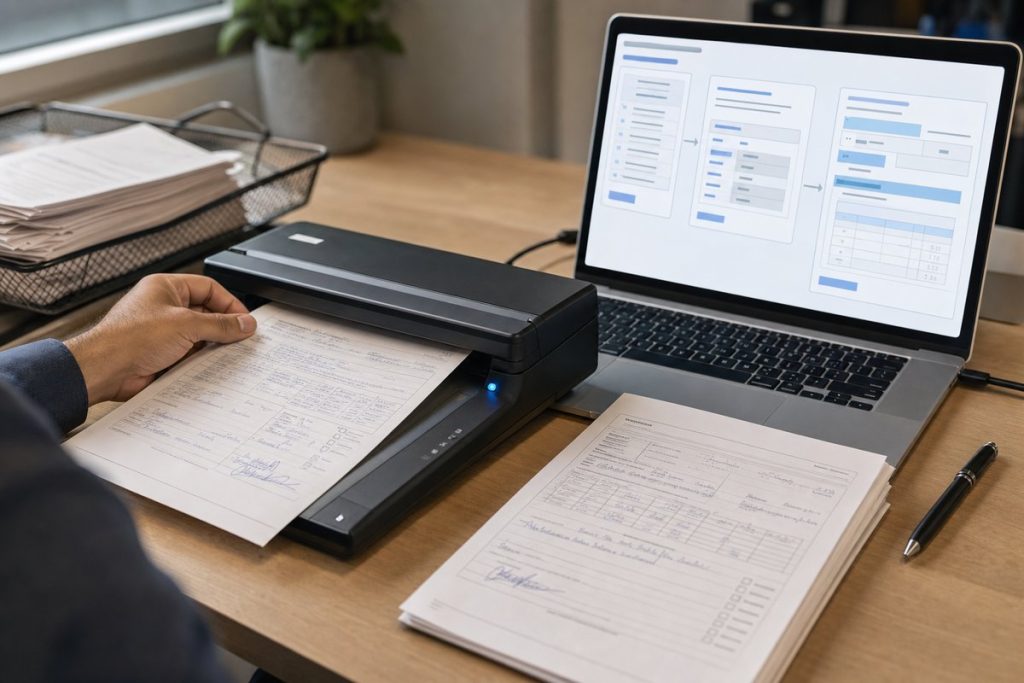
A common setup looks like this: a handwritten form is scanned or photographed, uploaded to SharePoint, OneDrive, Teams, email, or a line-of-business app, and then passed to an AI extraction service such as Azure AI Document Intelligence. From there, the extracted values go through validation rules and land in something useful like Dataverse, Dynamics 365, an SQL database, or a Power App.
Then Power Automate handles the next move. Maybe it routes exceptions to a human reviewer. Maybe it creates a case record. Maybe it updates a patient file, opens a service ticket, or starts an approval.
That’s the piece people tend to underestimate. The AI reading is only half the win. The operational payoff comes from what happens after the data is captured.
If you want the non-technical version of how document intelligence works, think of it as a smart intake clerk that reads the page, finds the fields, pulls out the likely values, and hands the data off to the rest of your business process.
AI vs OCR for handwritten forms
There’s still a lot of confusion here because vendors sometimes use “OCR” as a catch-all term. But if you’re evaluating handwritten form automation, it helps to separate basic OCR from modern document intelligence.
With traditional OCR, the system mainly tries to recognize text characters from an image. It may do well on many typed invoices or standard PDFs. Handwriting, mixed layouts, crossed-out fields, checkboxes, and side notes tend to expose the limits pretty quickly.
With AI-driven extraction, the system looks at the page more like a person would. It identifies regions, labels, tables, fields, and relationships. It can often infer that a handwritten value next to “Policy Number” belongs there, even when the spacing is messy.
That’s the practical difference in the AI vs traditional OCR discussion. One approach reads text. The other tries to understand documents.
And yes, there’s overlap. OCR is still part of the stack. For handwritten forms, though, OCR by itself usually won’t get you far enough.
What accuracy should you actually expect?
This is where I’d be careful with big promises. No honest consultant should tell you handwritten extraction is 100% accurate across all forms and all writers. That’s just not how the real world works.
What you should expect is a range. Some fields will perform very well, especially names, dates, yes/no selections, phone numbers, and clearly written IDs on structured forms. Others will need review more often—long comments, medication names, unusual abbreviations, messy cursive, that kind of thing.
The smarter way to judge success isn’t “Did AI read every word perfectly?” It’s “Did this cut enough manual work to matter?”
For a lot of teams, the answer is yes, even if a person still reviews exceptions. If AI can pre-fill a large share of the routine data and send only questionable fields for review, that can still transform throughput. I’m not offering that as some universal benchmark, just a common way teams look at value: partial automation can still be a very strong result.
The overlooked part: confidence scores and human review
Here’s something a lot of buyers miss. The goal usually isn’t to remove humans from the process. It’s to use humans where they’re actually needed.
Good document AI platforms return confidence indicators for extracted values. That means you can build a workflow where high-confidence fields pass through automatically, while low-confidence ones get flagged for review in a Power App or queue.
That changes the economics. Instead of paying someone to key in every field on every form, you’re asking them to review only the uncertain parts. A date here. A handwritten member ID there. A note that’s too messy to trust blindly.
From a compliance standpoint, that’s often exactly what operations and IT leaders want: automation where it’s safe, human oversight where it matters.
Healthcare is a great example — and a tough one
Healthcare intake is one of the clearest use cases because it combines high volume, repetitive forms, handwritten entries, and real pressure to move fast. Patients still fill out clipboards, consent forms, medical history sheets, and insurance paperwork every day.
It’s also a demanding environment. You need privacy controls, review steps, auditability, and clean integration into EHR-adjacent workflows or downstream systems. That’s why healthcare intake document automation needs more than just “we can scan handwriting.” It needs governance.
The same logic applies outside healthcare too. Insurance, logistics, field service, and local government all have their own version of this problem. The form is only one piece of it. The bigger question is whether the extracted data can be trusted, traced, and used without creating a downstream mess.
How to improve results before you buy anything new
You can often raise success rates with a few process changes before touching the AI model at all.
- Standardize form versions wherever possible
- Increase writing space for important fields
- Use clearer labels and remove visual clutter
- Encourage dark ink instead of pencil when practical
- Set minimum scan or photo quality guidelines
- Separate long freeform comments from key structured fields
- Define which fields can auto-post and which require review
That last point matters more than it sounds. Not every field deserves the same treatment. A handwritten first name with high confidence may be fine to accept automatically. A policy number, dosage instruction, or routing number probably deserves stricter validation.
What a solid pilot project looks like
If you’re evaluating this for your organization, don’t start with your hardest documents. Start with one form type that has enough volume to matter and enough structure to be realistic.
A good pilot usually includes one document source, one repeatable process, and one clear business outcome. For example: extract handwritten service details from field work orders and push them into Dynamics 365. Or capture patient intake fields from scanned forms and route exceptions to a validation queue in Power Apps.
Keep the scope tight. Measure manual touch time before and after. Track which fields fail most often. And involve the people who actually work those documents every day—they’ll tell you fast whether the workflow saves time or just moves the hassle somewhere else.
That’s another thing teams learn the hard way: a technically successful extraction project can still fail operationally if reviewers spend all day fixing awkward exceptions. The workflow design matters just as much as the model.
When handwritten AI is not the right answer
Sometimes the better move is to redesign the intake process instead of automating the paper. If you control the user experience, a Microsoft Form, a Power Pages portal, or a tablet-based app may be cleaner than trying to decode handwriting forever.
But that’s not always realistic. Customers, patients, contractors, and field staff don’t always go along with digital-first plans. Some environments have weak connectivity. Some users are simply more comfortable with paper. Some compliance or signature requirements still create paper-heavy workflows.
So the real question isn’t “Should everything become digital?” It’s “Where does AI help us bridge the gap between paper reality and digital operations?”
That’s where this technology earns its keep.
Your best next step
If handwritten forms are slowing down your team, pick one high-volume form and map the process from document arrival to final data entry. Don’t start with the AI tool. Start with the bottleneck.
Then identify three things: which fields matter most, which ones are hardest to read, and where a human review step would still be acceptable. Once you know that, you can test document AI in a way that reflects your real workflow instead of a polished vendor demo.
If you want a useful baseline before evaluating platforms, read through the difference between OCR and document intelligence, then compare it with one of your actual forms. You’ll spot pretty quickly whether you need simple text recognition or a smarter extraction workflow.