
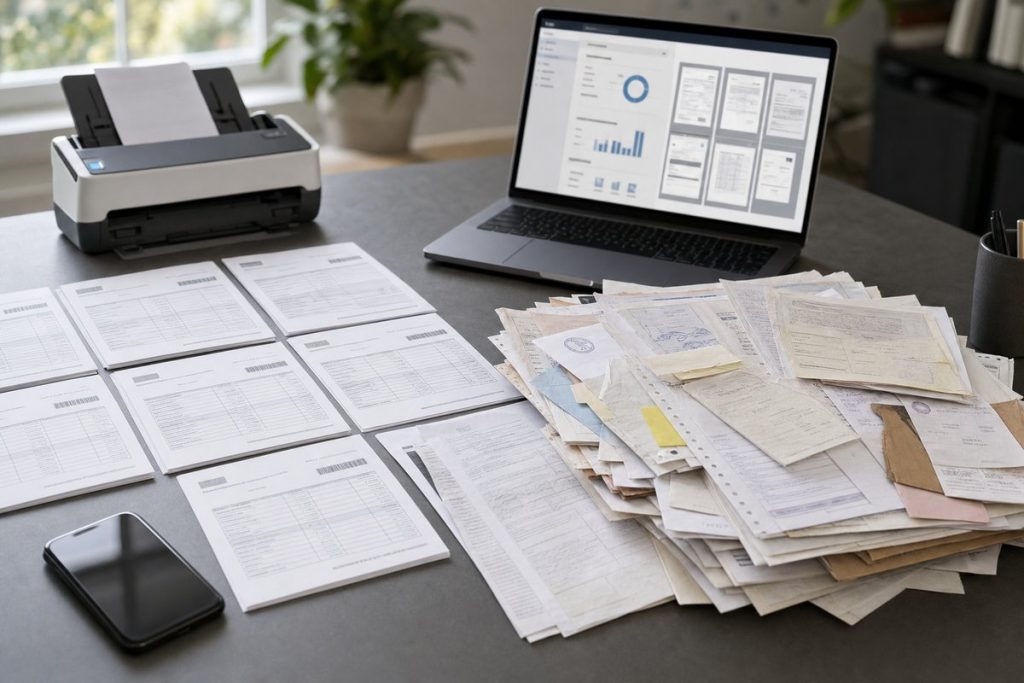
Why this distinction matters more than most teams realize
When people talk about structured data and unstructured data, it can sound like a technical debate for data architects. But if you deal with invoices, contracts, onboarding packets, claims, forms, email attachments, or scanned PDFs, this isn’t abstract at all. It’s the difference between information your systems can act on automatically and information that stays trapped inside documents.
That’s usually the real issue. Your business already has the data it needs. It’s just buried in places that don’t behave like clean rows in Excel, SQL Server, Dataverse, or Dynamics 365.
And this is where document automation projects either move or get stuck. If you know what kind of data is hiding in your documents, you can make better calls about Microsoft tools, AI models, workflow design, and where human review still earns its keep.
What structured data actually is
Structured data is information that fits neatly into a predefined format. Think tables, rows, columns, fixed fields, and known data types. A purchase order number goes in one field. An invoice date goes in another. A total amount has a clear place and a predictable format.
If you’ve ever worked in a SharePoint list, an Excel table, a Dataverse table, or a line-of-business app in Dynamics 365, you’ve already dealt with structured data. The system knows what each field means, where it goes, and what it can do with it.
That structure is what makes automation work. You can sort it, filter it, validate it, compare it, route it, report on it, and trigger Power Automate flows from it.
Take AP. If your team gets standardized vendor invoices and each one includes a vendor name, invoice number, due date, and total amount, those values can become structured data once they’re captured correctly. From there, you can match them against a PO, send exceptions to a reviewer, and push approved items into Business Central or an ERP.
Common examples of structured data in business documents
- Invoice number
- PO number
- Customer ID
- Contract effective date
- Payment terms
- Total amount due
- Tax amount
- Employee start date
- Claim number
- Vendor name
You can see the pattern: specific values, clear labels, known purpose.
What unstructured data really means
Unstructured data is everything that doesn’t fit neatly into those predefined boxes. Paragraphs, free-form text, scattered notes, email bodies, scanned letters, handwritten comments, long contract clauses written in plain language — all of that lands here.
People read this stuff easily. Systems, not so much. A project manager can skim a vendor agreement and spot the renewal clause almost immediately. Software won’t do that unless it has the right extraction logic or AI model behind it.
And unstructured data shows up in more places than most teams expect. It’s not just a pile of “messy files.” A lot of the time, it’s where the most important information actually lives.
Think about a contract. The supplier name and signature date may be easy to capture, but what about the indemnity language, termination notice period, auto-renewal terms, or the clause that changes pricing after year one? That’s where risk tends to hide. And it’s usually sitting in paragraphs, not fields.
Common examples of unstructured data in documents
- Contract clauses and obligations
- Email conversations attached to cases
- Notes entered in free-text fields
- Scanned letters from customers or vendors
- Policy documents and procedures
- Resumes and cover letters
- Medical narratives or incident descriptions
- Handwritten comments on forms
- Legal language in agreements
- Supporting documents in claims packets
So when someone says a document is “unstructured,” they don’t mean it’s useless. Usually they mean the value is harder for software to get at.
Most business documents contain both
Here’s the part a lot of teams miss: documents are rarely fully structured or fully unstructured. Most are both.
An invoice looks structured because it has labels and totals. But it may also include free-text descriptions, notes, line-item formatting that changes by vendor, and scan quality issues that make extraction harder than anyone expected.
A contract feels unstructured because it’s mostly prose. Still, it contains fields like party names, dates, addresses, notice periods, and governing law. Those pieces can often be extracted into structured records even if the document as a whole stays mostly narrative.
That matters because your automation strategy shouldn’t be all-or-nothing. You do not need to fully understand every document to get real business value. Sometimes pulling 8 to 12 key fields from a messy file is enough to save hours and cut down downstream errors.
That’s one reason document extraction has become such a practical place to start. You’re not trying to turn every PDF into a perfect digital twin. You’re pulling out the business-critical values that actually drive decisions and workflows.
Why documents create problems for traditional systems
Traditional business systems love clean input. Dropdowns, required fields, consistent formats, known rules. Documents do not always play along.
A vendor might send one invoice from SAP, another from QuickBooks, and another using a custom layout exported from some aging accounting system nobody wants to touch. A customer might submit a claim with a typed form, three phone photos, an email thread, and a handwritten note. Your team can make sense of that packet. Your systems usually can’t.
That gap creates manual work: someone opens the file, reads it, decides what matters, types it into a system, and maybe chases down missing information. It also creates inconsistency. Two employees may interpret the same clause or field differently, especially when they’re slammed.
There’s another problem that gets missed. Once people manually rekey data from documents, the original context often disappears. You may capture the invoice total but miss the note saying a partial shipment is still pending. You may store the contract date but miss the sentence that changes renewal behavior unless written notice is given 90 days in advance.
So the challenge isn’t only data entry. It’s preserving meaning.
Where OCR fits — and where it falls short
Many operations teams start with OCR, and that makes sense. OCR, or optical character recognition, turns images of text into machine-readable text. If you scan a paper invoice or upload a PDF, OCR can help convert what it sees into words a system can process.
Useful, yes. But it’s just the first step.
OCR can tell you that a page contains the words “Invoice Date” and “Net 30.” It doesn’t always reliably understand which value belongs to which field, whether a clause changes legal risk, or whether a number is the subtotal, tax, or grand total when the layout shifts.
That’s exactly why OCR is not enough for modern document automation. Reading text is not the same thing as understanding the document.
If you’ve ever heard a team say, “We already tried OCR and it didn’t work,” this is usually what they ran into. They solved text recognition, but not interpretation, structure, confidence scoring, exception handling, or integration into business processes.
How AI helps turn document content into usable data
This is where AI-powered document processing changes the conversation. Instead of only recognizing characters, modern tools can identify document types, detect key-value pairs, read tables, classify content, and extract fields based on context.
In the Microsoft ecosystem, that might involve Azure AI Document Intelligence, Power Automate, SharePoint, Dataverse, and downstream apps like Dynamics 365 or a custom Power App. The goal isn’t fancy AI for its own sake. It’s getting usable data into the systems your team already depends on.
If you want the plain-English version, here’s how AI document intelligence works. The short version: the system learns patterns in documents well enough to pull out the information you care about, even when layouts change.
That’s a big deal for semi-structured documents like invoices, receipts, W-9s, bills of lading, and onboarding forms. It can also help with more narrative-heavy files, especially when you need to identify clauses, summarize content, or locate specific obligations.
There is a trade-off, though. AI improves flexibility, not perfection. You still need confidence thresholds, review queues, and business rules. In my experience, the best setups are the ones where AI handles the repetitive extraction and people step in only for low-confidence exceptions or edge cases.
Semi-structured documents are the middle ground nobody talks about enough
If “structured” and “unstructured” feel too black-and-white, that’s because they are. A lot of business documents are really semi-structured.
Semi-structured documents have recognizable patterns, but they aren’t identical every time. A utility bill from one provider may look nothing like another. A vendor invoice may always include an invoice number and total, but the placement, labeling, and line-item format vary.
This category matters because it’s where many automation wins show up first. You don’t need a perfect fixed template. You need a system that can handle variation without falling over every time a supplier tweaks a PDF layout.
That’s also the practical difference in the AI vs traditional OCR conversation. Traditional OCR reads text, while AI-based tools are often better at understanding structure across changing formats.
For operations managers, that usually means less babysitting. For IT, fewer brittle template rules to maintain.
Real-world examples of what your documents may be hiding
Let’s make this concrete.
Accounts payable
Your invoices may look straightforward, but they often hide duplicate charges, changed remittance details, unusual payment terms, or line-item mismatches that disappear once someone keys in only the total. Extracting structured fields helps, but keeping the source document tied to the transaction matters just as much.
Contracts
Contracts hide deadlines, renewal terms, service credits, exclusivity clauses, insurance requirements, and obligations your team may not remember until there’s a dispute. Pulling structured data from contracts gives you a way to track those details in a system instead of hoping somebody remembers what’s buried on page 27.
HR onboarding packets
New hire documents often contain structured fields like name, start date, role, and tax information. But they also include handwritten notes, policy acknowledgments, exceptions, and supporting documents that don’t fit neatly into a form. If you capture only the form fields, you may miss context that matters later.
Claims and case files
A claims packet may contain forms, photos, repair estimates, police reports, and email updates. Some of that data is easy to structure. Some isn’t. The tricky part is that the claim decision often depends on connecting information across all of them, not processing each file in isolation.
That last point is easy to miss: the document itself may not be the unit of work — the case is.
How to tell what kind of data you’re dealing with
If you’re evaluating a document automation project, don’t start by asking, “Is this structured or unstructured?” Start with a few more practical questions.
- What decisions do people make from this document?
- Which values are they retyping into another system?
- What information is buried in paragraphs instead of fields?
- How much does the document layout vary by source?
- What happens when the extracted data is wrong or incomplete?
- Do you need the whole document understood, or just key data points?
- Where should a human reviewer step in?
Those questions usually expose the real scope. Sometimes you need basic field capture. Sometimes you need classification and routing. And sometimes you need clause extraction, exception handling, and a review workflow in Power Apps or Teams.
And sometimes the best answer is not to automate the whole thing. That’s worth saying plainly. If a document type is rare, highly variable, and high risk, partial automation may be the smarter move.
What this means for Microsoft-based automation projects
If you’re already using Microsoft 365, Power Platform, or Azure, the good news is you don’t have to rip out your stack to tackle this.
A common pattern looks like this: documents land in SharePoint, Outlook, Teams, or an upload portal; AI extracts key data; Power Automate routes the result; Dataverse (or another system) stores the structured output; and a human review step handles exceptions before records move into Dynamics 365, Business Central, or another downstream app.
That approach works because it respects both realities at once: documents are messy, and business processes need structure.
The trick is designing for confidence, not fantasy. Don’t assume every file will parse perfectly. Build review paths. Keep the source document attached. Store extracted values with traceability to the source document. Decide early which fields are required for automation and which ones are just nice to have.
One angle people don’t always think about: governance gets easier when you turn document content into structured data responsibly. Once key values are in Dataverse, SQL, or another governed system, you can apply retention rules, reporting, approvals, and audit trails much more consistently than if everything stays trapped in PDFs and inboxes.
The next step: pick one document type and map the hidden data
If you want to make this useful fast, don’t start with every document in the organization. Pick one high-volume document type — invoices, contracts, onboarding forms, claims packets, whatever causes the most friction — and map it in a simple way.
List the fields your team needs. Then list the information they read but don’t currently capture. Then note where layout variation, poor scan quality, or narrative text creates risk.
That exercise usually tells you three things right away: what’s structured already, what’s unstructured but valuable, and where automation will actually pay off.
Once you’ve got that map, you can choose the right extraction approach, decide where AI belongs, and build a workflow that fits the way your team really works — not the way a software demo pretends documents work.


