Why messy scans cause so many downstream problems
If you work with invoices, delivery tickets, onboarding packets, claims, or signed forms, you already know the ugly truth: the real problem usually isn’t the PDF itself. It’s the quality of the scan. A page comes in sideways, slightly crooked, faded, shadowed, or compressed into a blurry mess, and suddenly your automation starts missing totals, dates, signatures, or line items.
That’s where preprocessing comes in. Before your OCR or AI extraction tool reads the document, you clean up the image so the text and structure are easier to detect. Done well, preprocessing can turn a mediocre scan into something usable. Done badly, it can make a rough file even worse.
A lot of teams miss that. They buy a document capture tool, dump in real-world scans, and assume the model will figure it out. Sometimes it does. But if you’ve ever wondered why OCR alone falls short, poor scan quality is one of the biggest reasons.
What preprocessing actually means in document automation
In plain English, preprocessing is everything you do to a scanned image before text extraction starts. The goal is straightforward: make the document look more like a clean, flat, readable page.
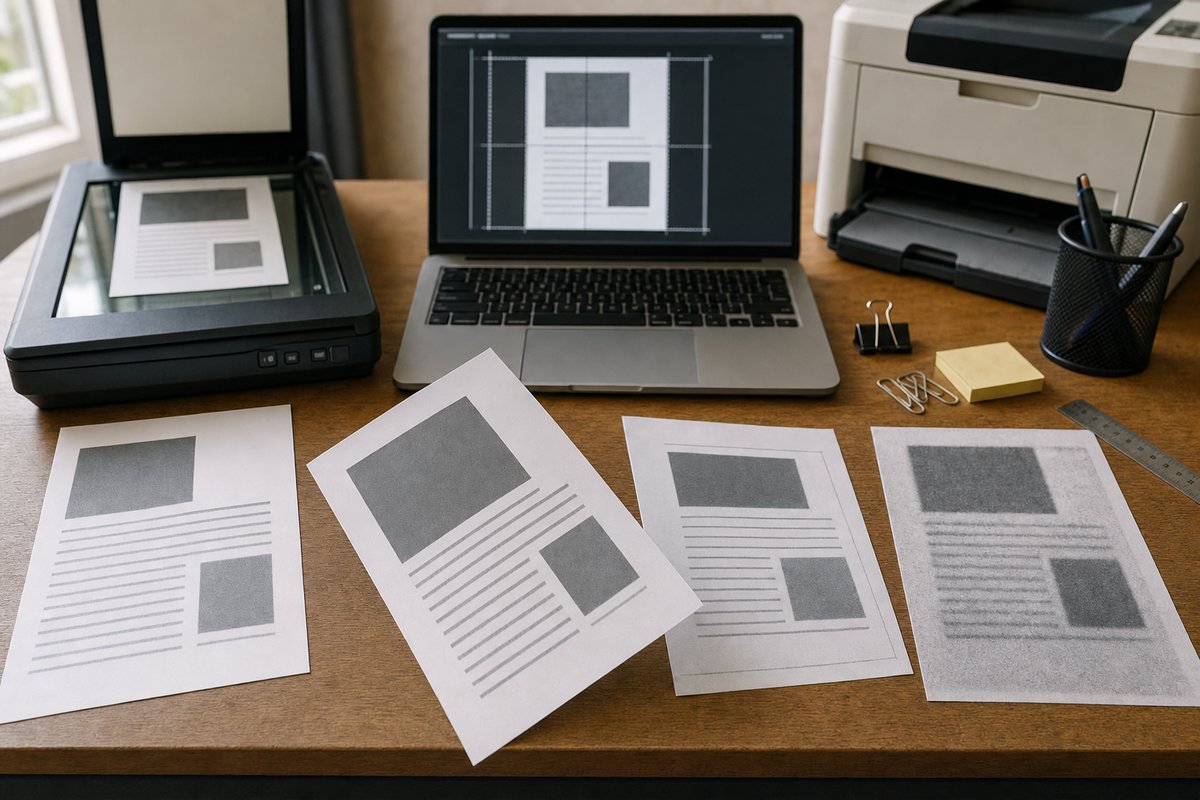
That might mean rotating a page upright, straightening a crooked scan, boosting contrast, removing noise, sharpening text, cropping out black borders, or increasing resolution. In some workflows, it also means splitting multi-page files, isolating regions of interest, or converting color scans to grayscale when that makes the page easier to read.
Think of it the way a person would handle paper forms at a desk. If a page is upside down, you flip it. If it’s faint, you drag it under better light. If there’s a coffee stain sitting on top of the total amount, you know you’ve got a problem before data entry even begins. Software needs that same kind of help.
Rotated scans: the easiest problem to spot, but not always the easiest to fix
A rotated page sounds simple. Sometimes it is. If somebody scanned a W-9 or vendor invoice 90 degrees off, most modern capture tools can detect the orientation and rotate it back.
In production, though, rotation gets messy fast. You might get a 17-page PDF where pages 1 through 5 are upright, page 6 is upside down, pages 7 through 10 are landscape, and the last few pages are phone photos. That kind of packet shows up all the time in AP inboxes, HR onboarding, and field-service paperwork.
The practical fix is to use auto-orientation at the page level, not just the file level. If your workflow rotates the entire PDF based on the first page, you can make half the packet worse without realizing it. Azure AI Document Intelligence and other modern tools often handle mixed orientations better than older OCR engines, but you still need to test them on your real documents—not the tidy samples vendors like to show.
What usually works for rotated pages
- Detect orientation per page, not per document
- Support 90, 180, and 270-degree correction
- Handle landscape forms separately from accidentally rotated portrait pages
- Keep an original copy for audit and troubleshooting
That last point matters more than people expect. If preprocessing rotates or rewrites the file and your finance or compliance team later asks what the original looked like, you’ll want both versions.
Skewed scans: small angle, big impact
Skew is when the page isn’t perfectly straight. Maybe it’s tilted by two degrees. Maybe seven. To a person, that barely registers. To OCR, it can be the difference between reading a vendor name correctly and turning it into gibberish.
This shows up constantly with desktop scanners, multifunction copiers, and mobile uploads. A warehouse receiver scans a bill of lading in a rush. A branch office uploads a stack of forms from an old Canon copier. Somebody uses Microsoft Lens on a clipboard form, but the camera angle is just a little off. Now the rows don’t line up, table detection falls apart, and text bounding boxes start drifting.
Deskewing tries to detect the angle of the page and straighten it. Most tools do that by finding text lines, page edges, or other structural markers. When it works, you barely notice it. When it misses, it can overcorrect and make the page harder to read.
Where deskewing helps most
Deskewing usually pays off on documents with clear horizontal text lines—things like invoices, remittance stubs, application forms, utility bills, and typed letters. It’s less dependable on handwritten notes, photo-heavy documents, or pages with very little text.
One thing teams often miss: skew doesn’t only hurt text recognition. It can hurt classification too. If you’re trying to tell the difference between a purchase order, packing slip, and invoice based on layout, even a slight tilt can throw those models off. So preprocessing isn’t just about cleaner OCR output. It can improve routing and document type detection upstream.
Low-resolution scans: the problem that keeps showing up in “digital” processes
You’d think low resolution would be rare by now. Nope. Plenty of organizations still have old scanner defaults, heavily compressed PDFs, fax-derived images, and phone captures that look acceptable at a glance but fall apart during extraction.
Low resolution usually means the text doesn’t have enough pixel detail for reliable recognition. Characters blur together. Thin lines disappear. Numbers like 8, 6, and 0 start getting confused. Decimal points vanish. That’s a real headache when you’re processing invoices, checks, statements, or insurance forms, where one bad digit changes the meaning.
As a rule of thumb, document extraction works best when the source is reasonably clear and not crushed by compression. You don’t need pristine legal-scanner output for every file. You do need enough clarity for text edges and page structure to survive the trip.
Common causes of low-resolution files
- Scanner defaults set too low to save storage
- Old fax workflows converted into PDF archives
- Email systems or mobile apps that compress attachments
- Photocopied documents scanned multiple times
- Screenshots saved instead of original PDFs
That last one happens more than you’d think. Someone opens a PDF, grabs a screenshot of the page they can see, and uploads that image. To them, it’s still “the document.” To your automation, it’s a flattened, lower-detail copy of the original.
What preprocessing can fix, and what it can’t
This is where expectations need to stay grounded. Preprocessing can improve a lot, but it can’t create information that was never captured in the first place.
If a scan is rotated, skewed, dark, noisy, or surrounded by copier borders, preprocessing can often rescue it. If a document was scanned at very low quality, compressed hard, and then copied twice before upload, there may not be enough signal left to recover key fields reliably.
That’s one reason the conversation around AI vs traditional OCR matters. AI-based document extraction is generally better at handling imperfect layouts and variable content, but it still benefits from cleaner inputs. Smarter reading doesn’t override the physics of a bad image.
The most useful preprocessing steps in a real workflow
If you’re deciding what to add first, don’t pile on every image tweak you can find. Start with the problems that actually show up in your incoming files. In most business workflows, a small set of preprocessing steps does most of the heavy lifting.
1. Auto-rotation
This corrects pages that were scanned sideways or upside down. It’s usually the fastest win, especially in shared-mailbox workflows where documents come from all over the place.
2. Deskewing
This straightens slightly tilted pages so text lines and tables line up better. It’s especially helpful for invoices, forms, and other structured documents.
3. Cropping and border removal
Black scanner edges, dark copier shadows, and extra background can confuse layout detection. Cleaning that out helps the engine focus on the page itself.
4. Contrast and brightness adjustment
Faint gray text on off-white paper is harder to read than most people realize. A careful contrast boost can make fields stand out. Push it too far, though, and you can wash out thin characters, stamps, or handwriting.
5. Noise reduction
Speckles, dust marks, and background artifacts can create false characters or interfere with line detection. Noise cleanup helps, especially on old scans and archived documents.
6. Resolution enhancement or resampling
If the image is only a little low-resolution, upscaling may help some engines. This gets misunderstood all the time: increasing DPI after the fact does not magically restore missing detail. It can help certain processing steps, but it won’t save a genuinely poor scan.
7. Binarization or grayscale conversion
Some workflows do better when a color scan is converted to grayscale or black-and-white. Others need color because highlights, stamps, or colored fields carry meaning. This is one of those trade-offs you really have to test instead of guessing.
Don’t preprocess every document the same way
This is one of the biggest design mistakes I see. Teams build one preprocessing routine and run every file through it, whether it’s a vendor invoice, a signed contract, a handwritten inspection form, or a photo of a receipt.
Sounds efficient. Usually isn’t.
Aggressive denoising that helps typed invoices may wreck light handwriting. Black-and-white conversion that sharpens printed text may erase colored approval marks. Tight auto-cropping may cut off page numbers or footer totals. The better move is a rules-based or model-driven workflow that adapts preprocessing to document type and source.
That’s also part of how document intelligence works in a mature system. It’s not just “read the file.” It’s classify, prepare, extract, validate, and route based on what the document is and how trustworthy the result looks.
How this plays out in Microsoft-centered environments
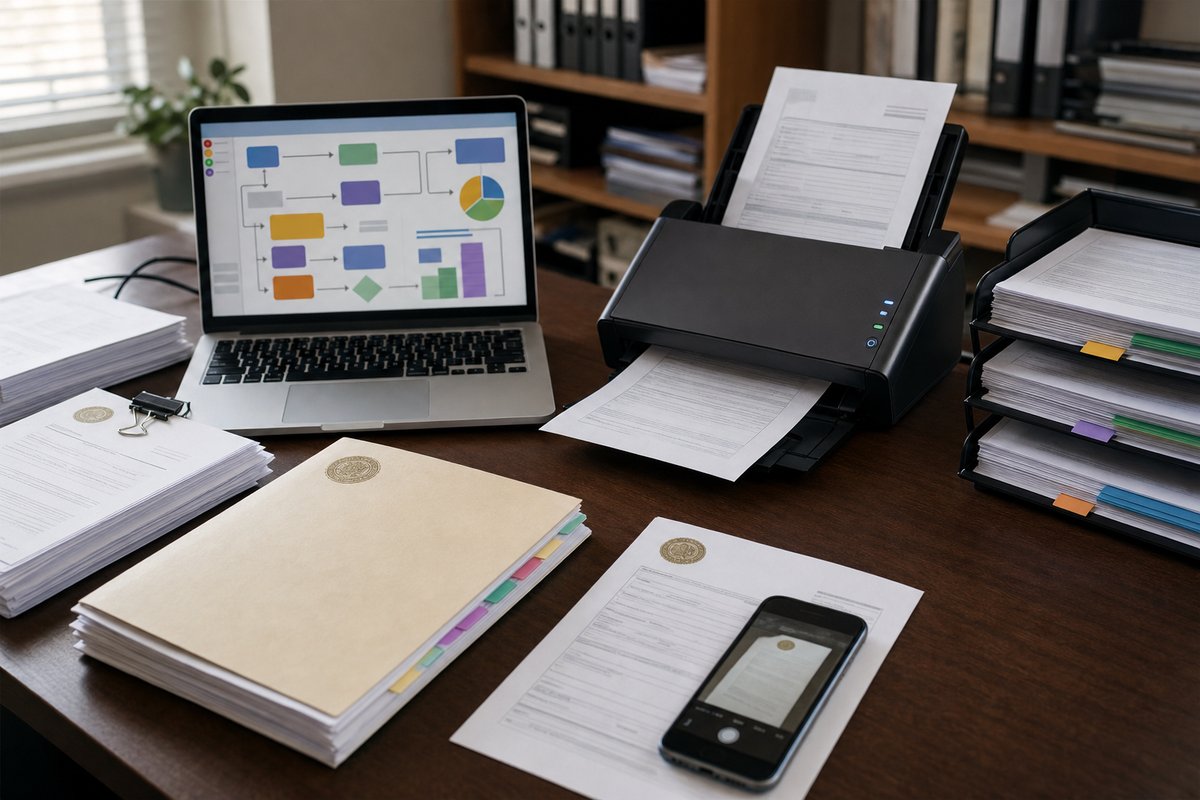
If you’re in the Microsoft ecosystem, you’ve got a few practical paths—from Power Automate and Azure-based extraction to Dataverse, Dynamics 365, SQL Server, and ERP integration. A lot of teams start with Power Automate because it’s already in the stack, and honestly, that makes sense. It’s a solid place to orchestrate document intake, approvals, storage, and exception handling.
For example, you might monitor an Outlook mailbox or SharePoint library, pass incoming files into an Azure-based extraction service, and then write results into Dataverse, Dynamics 365, SQL Server, or an ERP integration. If your main goal is to extract data from PDFs, that’s often the fastest path to something useful.
But preprocessing needs real thought. Power Automate is excellent for workflow orchestration. It is not, by itself, a full image-processing lab. Depending on the complexity, you may lean on built-in connectors, Azure services, third-party capture tools, custom APIs, or some combination of the bunch.
That’s why architecture matters. In a solid document intelligence pipeline, preprocessing isn’t some random script bolted onto the front. It’s a deliberate stage with logging, versioning, exception handling, and measurable impact on extraction quality.
How to tell whether preprocessing is actually helping
Don’t judge this by gut feel. Test it.
Take a representative batch of documents from real operations—not vendor sample files. Include the ugly stuff: shadowed scans, mixed-orientation packets, old fax PDFs, mobile photos, and documents with stamps or handwriting. Run them through your extraction process with and without preprocessing. Then compare field-level results.
You’re looking for practical outcomes like:
- Fewer missed invoice numbers, dates, totals, and vendor names
- Better table and line-item detection
- Fewer exceptions routed to human review
- More consistent classification by document type
- Less manual correction in downstream systems
Also watch for regressions. Maybe contrast enhancement helps 80 percent of invoices but hurts carbon-copy delivery forms. Maybe deskewing improves typed documents but introduces errors on handwritten claim forms. That’s not failure. It just means you need branching logic instead of a one-size-fits-all step.
When the better answer is fixing the capture process upstream
Sometimes the smartest preprocessing strategy isn’t more preprocessing. It’s better scanning habits.
If one branch office keeps sending blurry PDFs from an old Ricoh device set to low-quality mode, fix the scanner profile. If field users are uploading phone images in bad lighting, give them a capture standard and a tool like Microsoft Lens or a similar app with clear instructions. If a partner is emailing screenshots instead of source PDFs, consider changing the intake requirement.
This is the part operations leaders tend to appreciate once they see the numbers: every minute spent rescuing bad scans downstream is often more expensive than improving capture at the source. Preprocessing is valuable, no question. It just shouldn’t become a permanent bandage for avoidable input problems.
A practical way to decide what you need
If you’re evaluating document automation right now, keep it simple. Look at the documents you actually receive. Not ideal samples. Real files from email inboxes, scanners, branch offices, vendors, and mobile users.
Then ask four questions:
- How often are pages rotated or mixed in orientation?
- How often are scans slightly crooked or poorly framed?
- How many files are faint, noisy, compressed, or low resolution?
- Which extraction failures are caused by image quality versus document complexity?
The answers will tell you whether you need basic cleanup, source-specific preprocessing, or a more complete redesign of your intake process.
If you want a practical next step, pull 50 real documents that gave your team trouble in the last month. Sort them into three buckets: rotated, skewed, and low-resolution. Then test a preprocessing pass against each bucket before you change anything else in your automation stack. You’ll see pretty quickly which fixes are worth implementing—and which problems need to be solved at the source.