
Why purchase order retyping is still a bigger problem than most teams admit
Purchase order automation sounds simple on paper: a vendor emails a PDF, your team reads it, keys the line items into an ERP, and moves on. But if you're actually living with that process, you know the pain isn't just the typing. It's the follow-up questions, mismatched SKUs, missing PO numbers, approvals that stall because one field came through wrong, and the constant low-grade risk that someone fat-fingered a quantity.
That risk shows up in places people don't always connect back to the original PO. One bad unit price can trigger a receiving issue. A wrong ship-to location can hold up fulfillment. A missed line might not surface until a vendor dispute pops up three weeks later, when nobody remembers who touched the file.
That's why more operations and IT teams want a flow that takes a PDF purchase order, pulls out the right fields, checks them, and sends them into the ERP without someone retyping every line. Not just because manual entry is tedious—though, yeah, it is. Because the whole thing is fragile.
If you're in the Microsoft world, this is a very practical use of Power Automate, AI Builder, SharePoint, Dataverse, and ERP integrations. You don't need some giant moonshot. You need a process that can reliably handle the same documents your team already gets every day.
What “from PDF to ERP without retyping” really means
When people hear this phrase, they sometimes picture a magical black box that reads any purchase order from any vendor and posts it perfectly into Dynamics 365, Business Central, SAP, Oracle NetSuite, or another ERP every single time. Real projects don't work like that.
What you actually need is a controlled workflow.
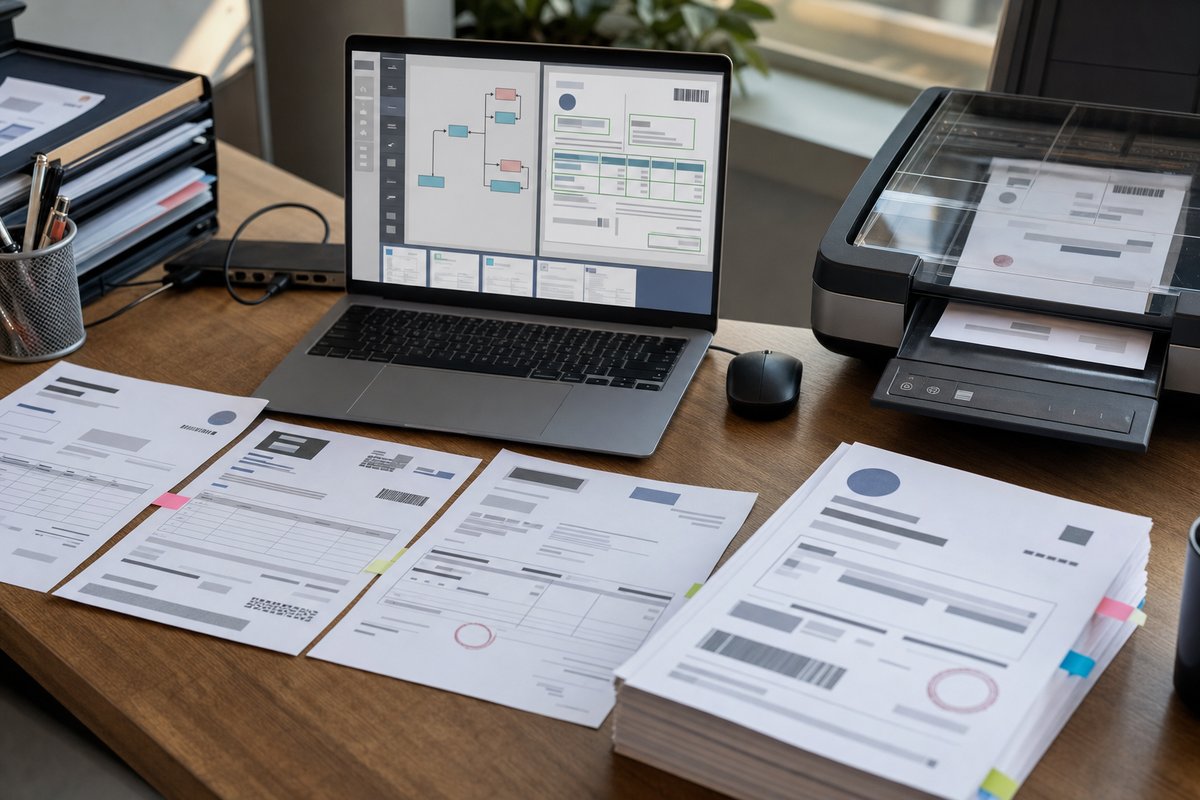
The PDF comes in through email, a monitored folder, SharePoint, Teams, or an upload portal. The system identifies it as a purchase order, reads the header and line details, validates the fields against your business rules, and then either creates the transaction in your ERP or kicks the exception to a person for review.
That difference matters. The goal isn't “no humans ever.” It's “no unnecessary retyping.” Big difference.
In practice, strong automation usually means:
- Reading supplier name, PO number, PO date, buyer, ship-to, and total
- Capturing line items like part number, description, quantity, unit price, and amount
- Checking whether the vendor exists in the ERP
- Matching products, units of measure, or customer-specific item codes
- Flagging low-confidence or missing values for review
- Writing approved data into the ERP through an API, connector, or integration layer
If you're still getting oriented, it helps to ground the whole thing in the basics of document extraction. That's the moment where software turns a PDF or image into structured data your business systems can actually do something with.
Why PDFs make purchase orders harder than they should be
PDFs are great for sharing documents with people. They're lousy at handing clean data to software. That's the whole headache.
Some purchase orders are digitally generated and have selectable text. Those are the easy ones. Others are scans from a copier, photos from a phone, or exports from older systems that place text in weird spots. Then you get vendor-specific layouts, line item tables that shift around, abbreviations, handwritten notes, stamps, and multi-page attachments.
A lot of teams miss the real problem here: it's usually not about reading text off the page. It's figuring out which text actually matters.
For example, a PDF might contain:
- A PO number in the header
- A vendor reference number in the top right
- An internal requisition number in the footer
- A shipping account number in the terms section
A person can sort that out almost instantly. Software can't “just know.” It needs rules, models, and validation logic. That's why the extraction layer and the ERP posting layer need to be designed together—not split into two separate projects that barely talk to each other.
What a practical automation flow looks like in Microsoft tools
If you're already using Microsoft 365, Power Automate is usually the first place teams start. A flow watches an inbox or document library, grabs the attachment, sends it through AI Builder or another extraction service, and maps the results into a downstream business process.
At a high level, a workable setup often looks like this:
1. Capture the purchase order
The document may arrive by email, land in a SharePoint library, or be uploaded through a Power Apps form. Sounds basic, but this decision affects everything downstream. Email is easy to get going with. A controlled upload portal is better when you want cleaner metadata and fewer curveballs.
2. Classify the document
Not every PDF in the inbox is a purchase order. Some are quotes, packing slips, invoices, order acknowledgments, or terms and conditions. So the flow needs to identify what it's looking at before it tries to post data into the ERP.
3. Read the fields and line items
This is where you extract data from PDFs. Depending on your document mix, that might mean using AI Builder's prebuilt or custom models, Azure AI Document Intelligence, or a hybrid setup where one tool extracts text and another handles business logic.
4. Validate against ERP data
The system checks whether the supplier exists, whether the SKU is valid, whether the currency is expected, and whether required fields are present. This is where a nice-looking demo turns into something you can actually run in production.
5. Route exceptions for review
If the extraction confidence is low, the vendor code doesn't match, or the totals don't reconcile, the document should go to a human review queue. Your team should be correcting exceptions, not retyping perfectly good documents from scratch.
6. Create or update the ERP record
Once the data passes validation, the flow can create a purchase order record, stage it for approval, or send it to a middleware layer that handles ERP posting more safely.
If you're trying to connect to your ERP, that last step deserves more attention than it usually gets. Extraction gets all the buzz, but ERP integration is where projects either click or get stuck.
The fields that usually matter most
Not every purchase order needs every possible field. And trying to automate 100 percent of edge cases on day one is one of the fastest ways to drag the project into the mud.
In most organizations, the first version of the workflow focuses on a core set of fields that drive downstream processing:
- Purchase order number
- Vendor or supplier name
- PO date
- Bill-to and ship-to details
- Line item number
- Item code or vendor part number
- Description
- Quantity
- Unit of measure
- Unit price
- Extended amount
- Subtotal, tax, freight, and total
One thing that doesn't get talked about enough: sometimes the most valuable field isn't on the purchase order at all. It's the metadata you attach during processing—source email address, received date, confidence score, business unit, exception reason. That operational layer makes reporting, troubleshooting, and audit reviews a whole lot easier later.
Where automation breaks down in the real world
Most failed document automation projects don't fail because the software couldn't read a PDF. They fail because the business process wrapped around the document was messier than anyone expected.
Maybe one vendor uses item descriptions only, while your ERP requires internal item numbers. Maybe buyers type freeform ship-to names that don't match master data. Maybe the same supplier sends three different PO layouts depending on region. Maybe the ERP allows partial records in one screen but requires complete records through the API.
That's normal. Frustrating, sure, but normal.
The way I see it, there are five common friction points:
- Vendor layout variation: even within the same supplier, formats can drift over time
- Weak master data: if your ERP data is inconsistent, automation exposes that fast
- Line-item complexity: bundles, discounts, freight lines, and notes can confuse extraction
- Approval logic: some POs can post immediately, others need business sign-off first
- Exception handling: if nobody owns the errors, documents pile up and trust disappears
That last one matters more than a lot of teams expect. People love to talk about straight-through processing rates, and sure, that matters. But trust usually comes from how the system behaves when the document is messy.
Why a human-in-the-loop design is usually the smarter choice
There's a temptation to treat human review as a failure. It isn't.
A well-designed review step is what makes the rest of the automation usable. If the model is unsure whether a line item says 100 or 180, you want a buyer or operations user to confirm it quickly. If the vendor name matches two supplier records, you want a person to pick the right one once, not clean up the wrong ERP transaction later.
The best review experiences are short and focused. Show the original PDF side by side with the extracted values. Highlight low-confidence fields. Let the reviewer fix only what's needed. Then feed those corrections back into your improvement cycle.
And if you can help it, don't bury that review process in email. A structured queue with status, ownership, timestamps, and comments is a lot easier to manage. That's exactly why a purpose-built human review queue tends to outperform ad hoc manual checks.
How to decide between AI Builder, Azure AI, and custom logic
If you're a Microsoft shop, this question comes up early.
AI Builder is often the fastest place to start, especially for teams that want a low-code path inside Power Platform. It's approachable, fits naturally with Power Automate, and works well when your document set is reasonably consistent.
Azure AI Document Intelligence is usually the better fit when you need more flexibility, broader document handling, or deeper control over extraction patterns and integration architecture. It tends to ask more from your technical team, but it opens more doors too.
Then there's custom logic. Not custom OCR from scratch—thankfully. I mean custom validation, matching, transformation, and posting rules around the extraction engine. In practice, that's where a lot of the real business value sits. The model reads the PO, but your logic decides what counts as acceptable data.
For a lot of organizations, the answer isn't either-or. It's a layered document intelligence pipeline where capture, classification, extraction, validation, review, and ERP posting each have a clear job.
What ERP integration really needs to work well
Getting data into the ERP isn't just a connector problem. It's a business rules problem wrapped inside an integration problem.
Let's say the PDF says “HP LJ Toner Black,” and your ERP needs item code CF280A. Somebody has to map that. If the vendor sends “EA” and your ERP expects “Each,” somebody has to normalize that. If the PO date is formatted as day-month-year but your downstream process expects month-day-year, somebody has to standardize it.
Sometimes that “somebody” is a Power Automate expression. Sometimes it's a Dataverse table. Sometimes it's middleware, an API layer, or ERP-side logic. Same point either way: extraction alone won't rescue you from mismatched business data.
So when you design the workflow, think past field capture:
- How will supplier records be matched?
- What happens when item codes are missing?
- Can the ERP accept draft records, or only final ones?
- Do you need duplicate detection by PO number and vendor?
- Where will posting errors be logged and resolved?
Those questions aren't glamorous. They're also the difference between a pilot that demos well and a process people actually trust.
How to roll this out without turning it into a giant project
You do not need to automate every supplier, every layout, and every ERP transaction type in phase one. Honestly, you probably shouldn't.
Start with a narrow slice of work that hurts enough to matter and repeats often enough to justify automation. A good first target might be one business unit, one document source, and a handful of high-volume vendors with reasonably consistent purchase orders.
Then build around a few practical goals:
- Reduce manual keying for the most common PO formats
- Catch exceptions before they hit the ERP
- Give operations visibility into document status
- Create a repeatable pattern you can extend later
That last point is easy to miss. Your first workflow shouldn't only solve one pain point. It should also give you a reusable pattern for other document types—like invoices, sales orders, remittance advice, or packing slips.
Teams usually move faster when they treat this as an operations workflow first and an AI project second. That keeps the discussion grounded in the stuff that actually matters: who receives the document, which fields matter, what happens when data is missing, who owns exceptions, how success will be measured in the real process.
What success looks like after go-live
A successful purchase order automation process doesn't mean your staff never touches another PDF. It means they spend less time on keyboard work and more time dealing with the exceptions that actually require judgment.
You should expect cleaner audit trails, faster processing, fewer avoidable entry mistakes, and a better view into where documents get stuck. You may also uncover issues that were already there but hidden by manual workarounds—bad vendor master data, inconsistent item naming, that kind of thing.
And honestly, that's a good thing. Automation has a way of exposing process debt. Painful at first, useful right after.
If you're evaluating this now, start simple: pull 25 to 50 real purchase order PDFs from your current process and review them for patterns. Look at vendor layouts, key fields, line-item complexity, and common exceptions. Then map the path from intake to ERP posting, including every place a person currently makes a judgment call. Once you do that, you'll have a much clearer picture of what should be automated, what needs validation, and where a review step belongs.