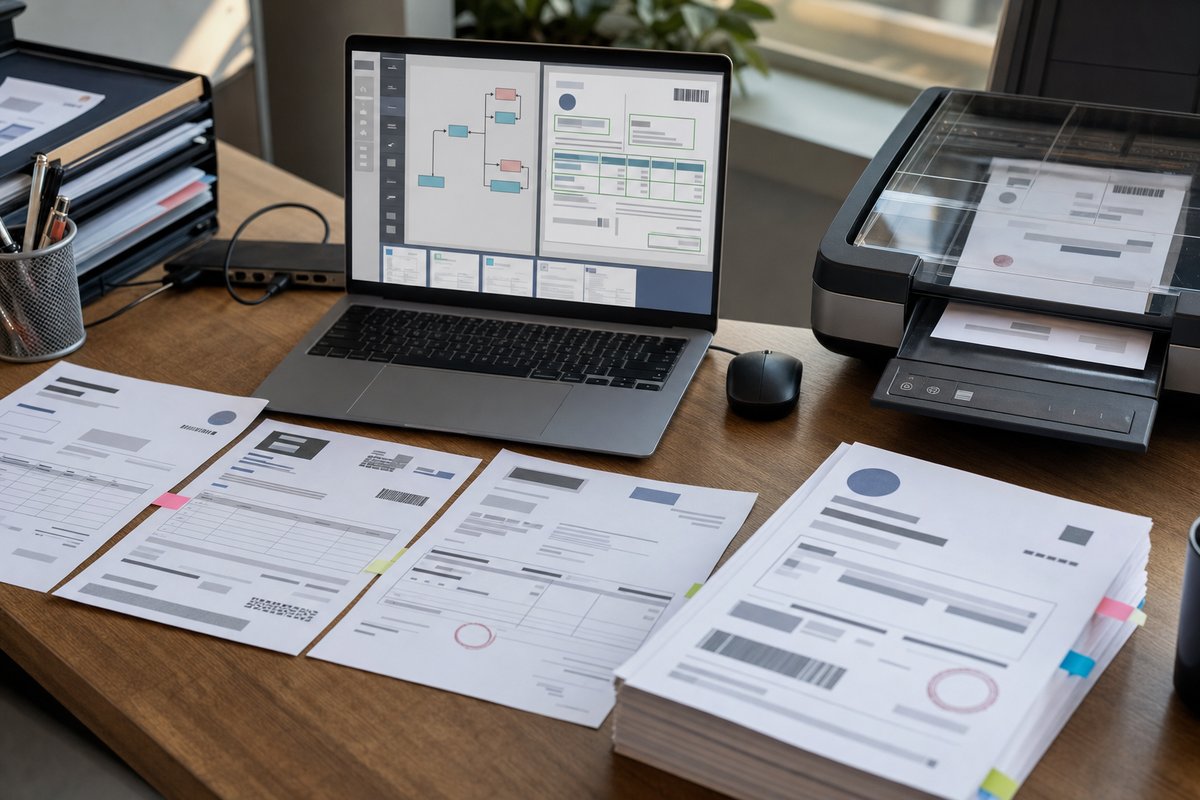

Why multi-page tables are where document automation gets real
If you've worked with invoices, statements, bills of lading, inspection reports, or healthcare forms, you already know the easy part isn't finding a table on page one. The hard part is figuring out what happens when that table keeps going on page two, page three, or page seven with a repeated header, a missing border, and a subtotal dropped right in the middle.
That’s exactly where teams start asking practical questions about how to extract data from multi-page tables in Azure AI Document Intelligence. And fair enough—this isn't just OCR reading text off a page. It's turning messy document layouts into structured rows you can trust in Power Automate, Azure, Fabric, or your line-of-business system.
Azure AI Document Intelligence is often very good at detecting tables and reading cell content. But in real business documents, a “table” isn’t always one neat object. Sometimes it's several detected tables that are really one logical table spread across multiple pages. That distinction is where a quick demo starts to fall apart—or where a production process starts to get solid.
What Azure AI Document Intelligence actually gives you
Before you solve the multi-page problem, it helps to understand what the service returns. If you're newer to document extraction, think of Azure AI Document Intelligence as a service that analyzes a file and gives you structured results like paragraphs, lines, key-value pairs, tables, and fields, depending on the model you use.
For tables, the output usually includes row and column indexes, cell content, bounding regions, and page references. Useful stuff. The catch is that the service may identify page-one rows as one table and page-two continuation rows as another table, even when any human looking at the document would call it one table.
That’s not really a flaw. It’s just how layout analysis works. The model is looking at what’s physically on each page. Your process still has to decide whether those separate table objects belong together.
If you want the broader non-technical picture first, this guide on how document intelligence works is worth a read. It helps explain why layout detection and business meaning don't always line up neatly.
Why multi-page tables break simple extraction logic
A lot of first-pass implementations assume one detected table equals one business table. That holds up right until you get a vendor invoice from SAP, Oracle, or Dynamics that prints line items across several pages and repeats the header every time the page breaks.
Then things get messy fast.
- The process treats every page segment as a separate table.
- Repeated header rows get loaded as data.
- Subtotals or carry-forward rows are mistaken for line items.
- Blank-looking cells on continuation pages shift columns out of alignment.
- Rows split by page breaks get duplicated or chopped in half.
Once that bad structure lands in Excel, SQL, Dataverse, or an ERP import, users stop trusting the automation. That’s usually the real problem. Not whether the AI found the text, but whether the extracted rows still match the business document people use every day.
The best way to think about it: physical tables versus logical tables
The way I see it, this gets easier when you separate two ideas: the physical table the model detects on a page, and the logical table your business process actually needs.
A carrier invoice might physically contain three table fragments over three pages. Logically, though, it’s still one list of charges. Your workflow should be built to rebuild that logical table after analysis.
Which means Azure AI Document Intelligence usually isn't the only step. It's one piece inside a larger document intelligence pipeline that handles classification, extraction, validation, transformation, and downstream posting.
A lot of teams miss that and spend too much time trying to make the model itself “understand” every continuation rule. Usually the cleaner move is to let the service detect the structure, then apply business logic to merge and normalize the result.
How to extract data from multi-page tables in Azure AI Document Intelligence
If you're building this for production, the pattern that tends to hold up best looks like this:
- Analyze the full document, not page-by-page in isolation.
- Collect every detected table with page numbers and cell coordinates.
- Identify likely continuation tables using layout and header similarity.
- Remove repeated headers and non-data rows.
- Standardize column positions across fragments.
- Merge the fragments into one logical row set.
- Validate totals, row counts, and field consistency before export.
Looks straightforward on paper. In practice, the little details are what make it work—or make it annoying to support six weeks later.
1. Run analysis on the entire document
If you split a PDF into single pages before analysis, you can make the stitching problem harder than it needs to be. In most cases, you want Azure AI Document Intelligence to process the full file so each table object comes back with page references in one result set.
That gives you more context when deciding whether a table on page two continues one from page one. You can compare nearby content, headers, and the document's overall structure without juggling separate API responses.
2. Capture table metadata, not just cell text
Don't just pull out the visible values and move on. Save the metadata too: page number, row index, column index, bounding region, and any span information. That extra context is what lets you build reliable continuation logic.
For example, if a table on page two starts near the top margin, has the same five columns as the page-one table, and appears immediately after it with no new section heading, there's a strong chance it's a continuation. Without metadata, you're mostly guessing.
3. Compare headers to detect continuation
Repeated headers are one of the biggest signals. If page one has columns like Item, Description, Quantity, Unit Price, and Amount, and page two starts with the same labels in the same order, that usually points to a continuation rather than a brand-new table.
Still, exact string matching will let you down pretty quickly. Real documents drift. One page might say “Qty” while another says “Quantity.” A scanned copy might read “Amount” as “Am0unt.” So your logic should allow for close matches, not just perfect ones.
A simple normalization step goes a long way here: trim spaces, lowercase the text, remove punctuation, and compare likely header terms. You don’t need fancy machine learning for this. Plain business rules are often enough.
4. Watch for continuation cues outside the table
A lot of teams overlook this, but some of the best evidence that a table continues isn’t inside the table at all. It’s in the text around it.
Documents often include clues like “continued,” “items continued,” “carry over,” or a repeated document number in the page header. In utility bills and logistics paperwork, the page footer can also tell you whether you're still in the same transactional section.
So if you’re already extracting lines and paragraphs, use them. That surrounding content can make your merge logic much more dependable, especially when table borders are faint or inconsistent.
5. Filter out rows that aren't real line items
One of the fastest ways to wreck a clean extraction is to treat every row as data. In multi-page tables, you’ll often get rows that are really headers, subtotals, carry-forward balances, tax summaries, or notes.
Say you’re processing a vendor invoice. A row that says “Subtotal” or “Balance Forward” should not be loaded as a purchasable line item. Same goes for a row where the first cell says “Page 2 of 4” because the PDF layout happened to overlap with the detected table region.
Build row-level checks for these cases. In a lot of environments, a handful of rule-based exclusions catches more noise than people expect.
6. Standardize columns before merging
Even when two page fragments belong together, their columns may not line up perfectly. Maybe page one has a blank value in the discount column, while page two shifts text slightly because the scan is crooked. Maybe merged cells throw off the visible structure.
Before you append rows, map each fragment into a standard schema. For example:
- Line number
- Item code
- Description
- Quantity
- Unit price
- Extended amount
Then place extracted cell values into that schema based on header matching and position rules. That’s a lot safer than just dropping table 2 under table 1 and hoping the columns mean the same thing.
7. Validate after the merge, not before
Once you've built the logical table, validate it the way a business user would. Do the line amounts add up roughly to the subtotal section? Do all rows belong to the same invoice number or shipment ID? Did the number of line items suddenly double because repeated headers slipped in?
This is where extraction accuracy metrics matter more than raw model output. A table can look technically extracted and still fail the business test of “Can I use this without cleaning it up first?”
Which Azure AI Document Intelligence model should you use?
For many multi-page table scenarios, teams start with the layout model because it's designed to identify structural elements like tables, lines, and paragraphs. That’s often the right place to start when the document format varies a lot across vendors.
If your documents are more standardized, a custom extraction model may help you pull document-level fields around the table more cleanly. But for long line-item tables, layout data is still frequently part of the answer because table geometry matters.
That’s the trade-off. Prebuilt layout gives you flexibility, but you’ll usually need more post-processing. A custom model can reduce some ambiguity, but it won’t magically erase page-break issues if the source documents are inconsistent.
What this looks like in a real business workflow
Say your AP team receives a 12-page PDF invoice from a freight carrier. The first page has account details and the start of the charge table. Pages two through ten continue the charges. Page eleven shows fuel surcharge and tax summaries. Page twelve has remittance instructions.
Azure AI Document Intelligence can detect the tables on each page. Your workflow then needs to:
- Keep only the charge-related table fragments
- Recognize repeated headers on continuation pages
- Exclude summary rows like fuel surcharge totals if they aren't line items
- Merge all charge rows into one normalized dataset
- Pass exceptions to review when values are unclear or totals don't reconcile
That final exception step matters. You don’t need a perfect no-touch process on day one. Honestly, most solid implementations are built around “straight-through when clean, review when risky.” That’s a much more realistic target than pretending every multi-page table will parse flawlessly.
Don't ignore confidence at the cell level
When teams talk about confidence, they often think at the document level: “Did the extraction work or not?” With multi-page tables, the better question is which specific cells or rows are shaky.
A row with a crisp item code and amount may be safe to accept automatically. A row where the quantity is faint, the description spills across lines, and the amount is partially clipped at a page break probably isn’t.
That’s why confidence scores should feed your review rules. Not every low-confidence value needs to stop the whole document. Sometimes you only need to flag one row for human review while the rest of the table keeps moving.
That row-level approach is often faster for operations teams and a lot less irritating for users. Instead of rechecking an entire 10-page invoice, they review the two lines the system couldn’t read cleanly.
Common mistakes that cause avoidable rework
In my experience, most multi-page table issues don't come from Azure itself. They come from process design choices around it.
- Assuming the model will return one perfect end-to-end table object
- Ignoring repeated header detection
- Skipping metadata and keeping only text values
- Treating subtotals and notes as data rows
- Using exact-match rules that break on OCR variation
- Measuring success by field capture alone instead of downstream usability
Another mistake is testing only on clean sample PDFs. Production documents are usually messier than the samples people use in demos. You need scanned copies, rotated pages, vendor variations, and files with ugly page breaks in your test set. Otherwise your first real rollout becomes the testing phase—and yeah, nobody likes that.
How to know whether your approach is good enough
You don't need theoretical perfection. You need an extraction process that saves your team time without quietly creating cleanup work downstream.
A good benchmark is operational trustworthiness. Can your AP clerk, claims analyst, or logistics coordinator look at the extracted rows and say, “Yes, this matches the document I would have keyed manually”? If not, keep tuning.
Measure the right things too. Not just whether a table was found, but whether the merged output preserves row count, column meaning, totals, and exception handling. That’s where the real return shows up.
Your next step if you're building this now
If you're working on How to Extract Data from Multi-Page Tables in Azure AI Document Intelligence, start with five to ten real documents that already cause your team headaches. Not the polished samples—the messy ones.
Run them through the layout model, inspect the returned table objects page by page, and document three things: which fragments should be merged, which rows should be excluded, and which cells need confidence-based review. That exercise will tell you more about your production design than any generic proof of concept.
Then map that logic into your Azure workflow, whether that's Azure Functions, Logic Apps, Power Automate, or a broader data processing stack. Do that groundwork first and you’ll build something users can actually trust, not a table extractor that only works when the PDF behaves.