Why accounts payable still gets stuck
Accounts payable automation sounds like a finance project, but on the ground it usually shows up as an operations headache first. The team is stuck with emailed PDFs, scanned invoices, vendor follow-ups, approval bottlenecks, and the usual month-end scramble. Nobody wants to spend half the morning matching invoice numbers by hand.
And the annoying part is that AP rarely slows down because of one giant failure. It’s usually death by a hundred little delays: an invoice lands in the wrong mailbox, a PO number is missing, a manager is on the road, a duplicate sneaks in, or somebody has to key line items into Dynamics 365, Business Central, NetSuite, or SAP all over again.
That’s where automation starts to change things. When it’s set up well, an invoice can move from intake to review, approval, posting, and payment with a lot less manual handling. Not zero human involvement—just the parts that actually need a person.
The goal isn’t to replace your AP team. It’s to stop using experienced people like copy-and-paste machines.
What accounts payable automation actually means
In practical terms, AP automation means software takes over the repetitive work that slows the team down. Usually that includes capturing invoice data, checking it against business rules, routing it for approval, and pushing approved records into your ERP or accounting system.
If you’re already in the Microsoft ecosystem, you can often do this with Power Automate, Power Apps, SharePoint, Teams, Dynamics 365, and Azure AI services. The upside is pretty straightforward: you don’t need some massive custom build before you see results. A lot of organizations start small—one invoice type, one approval flow, one business unit—and build from there.
The simplest version looks like this: an invoice comes in, the system reads it, figures out what should happen next, pulls in a person only when needed, and records the outcome cleanly.
What the end-to-end AP process looks like when it’s automated
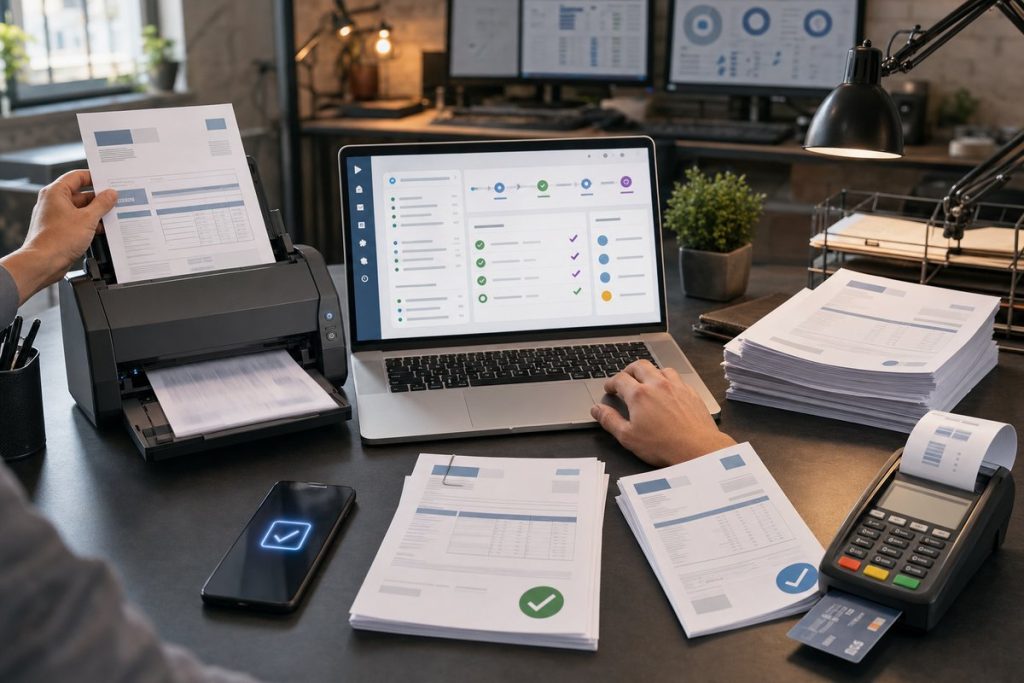
Let’s make it real. A vendor emails over a PDF invoice. Instead of someone downloading it, renaming the file, opening it, and typing the details into a system, the workflow picks it up.
1. Invoice intake
Invoices can come from email inboxes, vendor portals, SharePoint folders, Teams channels, scanners, or even mobile uploads. A solid process pulls all of that into one controlled queue so nobody is digging through Outlook folders trying to find “the latest version.”
This step ends up being more useful than people expect. Once intake is centralized, you can answer basic questions without a scavenger hunt: what came in today, what’s waiting for approval, what’s stuck, and what’s missing required fields.
2. Data capture and extraction
Next, the system reads the invoice and pulls out key fields: vendor name, invoice number, invoice date, PO number, totals, tax, due date, and often line items. If you want a plain-English explanation of how document extraction for invoices works, that’s worth understanding before you choose a tool.
This is usually the point where AP teams see the gap between basic OCR and newer document processing tools. OCR can read text, sure, but context is where it often falls apart. AI-based tools are generally better at recognizing that “Invoice No.” and “Inv #” are probably the same field, even when every vendor seems determined to format things differently.
3. Validation and business rules
Once the data is captured, the workflow checks it. Is the vendor recognized? Is the invoice number a duplicate? Does the math work? Is there a matching purchase order? Does the amount cross an approval threshold?
Those checks matter. Speed without control just gives you a faster mess. Nobody wants invoices moving quickly if they’re moving quickly in the wrong direction.
4. Matching and exception handling
For PO-based invoices, the system can compare invoice details with the purchase order and sometimes the goods receipt too. If everything matches, the invoice can move forward with very little review—or in some cases, none at all.
But AP lives in the exceptions. Prices are off. Quantities don’t line up. Freight shows up out of nowhere. Good automation doesn’t pretend those cases are rare. It catches them early, sends them to the right person, and keeps a record of what happened.
5. Approval routing
Approval workflows are where manual AP processes lose whole days. An invoice sits in somebody’s inbox. They’re out on vacation. Or they haven’t been the right approver for six months and nobody updated the process.
Automation helps by routing based on rules such as department, entity, spend category, project code, or dollar amount. It can send approval requests in Teams, Outlook, or a Power Apps screen, and it can escalate if nothing happens after a set amount of time.
6. Posting and payment readiness
After approval, the invoice data moves into your finance system for posting and payment scheduling. Depending on your setup, that might mean creating a voucher in Dynamics 365 Finance, moving records into Business Central, or handing things off to another ERP through an integration layer.
At that point, AP is no longer chasing paper around the building—literally or digitally. The invoice is recorded, approved, and ready for the normal payment cycle. A process that used to drag across days of handoffs can get a lot tighter when the workflow is clean.
Where Microsoft tools fit into the process
If you already use Microsoft 365, you may be closer than you think. A common setup looks something like this: invoices hit a monitored mailbox, Power Automate grabs them, Azure AI extracts the data, SharePoint stores the file and metadata, Teams handles approvals, and the final record posts to your ERP.
That’s a big reason companies lean toward Microsoft for AP workflows. You’re not bolting on a disconnected point solution and hoping the integration holds together. You’re building on tools your users already see every day.
There are trade-offs, of course. Microsoft gives you flexibility, which is great when your AP process has quirks, but it also means workflow design really matters. A sloppy process automated with Power Platform is still sloppy—it just moves faster.
If you want to see how teams automate invoice processing with Microsoft Power Platform, it helps to look at examples before deciding how much standardization you need.
Why AI matters more than people think in AP
A lot of AP leaders assume automation is mostly about routing and approvals. Those absolutely matter. But in practice, the real bottleneck often starts earlier: getting usable invoice data out of messy, inconsistent documents.
Vendors don’t follow one standard format. One sends polished PDFs from an ERP. Another sends image-based scans that look like they went through a fax machine twice. Another has line-item tables split across pages. Another puts the PO number in the email body instead of on the invoice itself.
That’s where AI document intelligence earns its keep. It does more than read characters off a page. It helps identify fields in context, deal with layout variation, and improve extraction reliability across lots of supplier formats.
It’s not magic, though. You still need confidence thresholds, review rules, and a plan for low-confidence results. But it’s a much better fit for real AP environments than old template-heavy capture methods that break every time a vendor tweaks a form.
If you’re comparing technologies, this breakdown of OCR vs. AI document intelligence is worth a look. Plenty of buying mistakes happen because teams assume text recognition and document understanding are the same thing. They aren’t.
The business case goes beyond saving time
Most AP automation conversations start with labor savings, which makes sense. If your team is retyping invoices, chasing approvals, and answering status emails all day, there’s clearly room to work smarter.
But the business case usually gets stronger once you look past time savings alone.
- Fewer duplicate payments because invoice numbers, vendors, and amounts are checked automatically.
- Better visibility into approval bottlenecks and invoice aging.
- Faster month-end close because invoice status is easier to track.
- Cleaner audit trails with timestamps, approval history, and document links.
- More consistent policy enforcement for thresholds, coding, and segregation of duties.
- Stronger vendor relationships because fewer invoices get lost or delayed.
One angle that gets overlooked: AP automation also protects institutional knowledge. If one longtime AP specialist is the only person who knows how to decode three tricky vendors and route certain exceptions, that’s a real risk. Automation makes the process less dependent on tribal knowledge living in one person’s head.
What a good AP automation rollout looks like
The best rollouts don’t start with a plan to automate every invoice in every region, with every exception, on day one. That’s usually how a good project turns into a very long one.
Start with a narrow slice that has enough volume to matter but not so much complexity that the team gets buried. Maybe PO-based domestic invoices for one business unit. Maybe non-PO invoices under a certain dollar threshold with a straightforward approval chain.
Then test the workflow in the real world. Watch where users get stuck. See which vendors produce clean extraction and which ones need extra handling. Tighten up the exception paths. After that, expand to more invoice types or more entities.
Best practices that actually help
A few early decisions make a big difference:
- Create one official invoice intake channel instead of letting invoices arrive everywhere.
- Define your required fields before you configure extraction.
- Map approval rules clearly, including backup approvers and escalations.
- Decide what can auto-post and what always needs human review.
- Track exceptions separately so they don’t disappear into the same queue as standard invoices.
- Make status visible to AP, approvers, and finance leadership.
None of that is flashy. But these are the choices that separate a workflow people trust from one they quietly work around.
Common mistakes that slow projects down
One mistake is treating AP automation like a scanning project. Scanning is the first inch of the mile. If approvals, validations, and system handoffs are still broken, you just end up with a slow process and nicer-looking files.
Another is trying to force every exception into full automation. That usually backfires. Some invoices should go straight through. Some should be reviewed. The design needs to make that distinction deliberately.
I’d also be careful about over-customizing too early. It’s tempting to model every edge case from the old process, especially when stakeholders say, “But what about this one vendor?” Most of the time, you’ll get value faster by standardizing the common path first and handling unusual cases with a guided review step.
And one thing that doesn’t get enough attention: approval behavior is often a bigger issue than technology. If managers routinely ignore approval requests, no extraction engine is going to rescue the process. Sometimes the project needs policy cleanup and accountability just as much as software.
How to know whether your organization is ready
You don’t need a perfect environment to start. You do need enough process clarity to avoid automating chaos.
Usually, you’re in decent shape if you can answer a few basic questions: Where do invoices arrive? Which fields matter most? What are the approval thresholds? What counts as an exception? Which system becomes the system of record after approval?
If those answers are fuzzy, that doesn’t mean stop. It just means spending a little time documenting the current state before you build. This checklist on whether you’re ready to automate AP workflows can help you spot the gaps before they turn into project delays.
What success looks like six months later
A successful AP automation project usually doesn’t feel dramatic day to day. It feels calmer. Fewer “Did we receive this invoice?” emails. Fewer approvals disappearing into inboxes. Fewer last-minute scrambles before payment runs or close.
Your AP team spends more time resolving actual issues and less time doing data entry. Managers approve from Teams or email instead of printing PDFs. Finance has better visibility into liabilities. IT spends less time propping up one-off workarounds built on shared mailboxes and spreadsheets.
Maybe the clearest sign of success is this: people stop talking about the workflow because it just works.
How to get started without overcomplicating it
If you’re evaluating AP automation now, skip the giant software bake-off at the start. Begin with your current invoice path. Trace one invoice from arrival to payment and write down every handoff, every rekeying step, every approval delay, and every place somebody has to ask, “What’s the status?”
That exercise alone tends to expose where the real friction is. From there, pick one invoice scenario you can automate first, choose the systems that need to connect, and define which exceptions should stay human-reviewed.
If you’re a Microsoft shop, the next practical step is to map how invoice intake, extraction, approvals, and ERP posting could work across Power Platform and, where appropriate, Azure AI or other document capture tools. Keep phase one narrow. Measure cycle time, exception volume, and approval responsiveness. Then expand with confidence instead of hope.
That’s how you get from invoice to payment in minutes where it makes sense—and keep control where it matters.